|
|||
|
|
|||
|
|||
|
|
|||
|
|||
| Configuring
Outlook 97
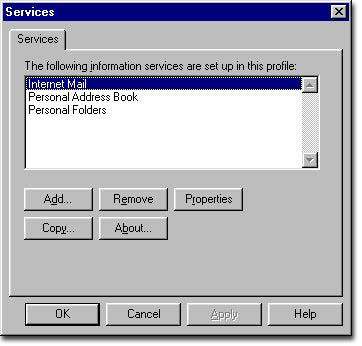
You will need to open up Outlook 97 and click on the menu called Tools. From there you should select Services, to see a screen that looks like the screen below. Notice that we have Internet Mail highlighted - if you don't see that as a choice, you'll need to Click on Add, and then select Internet Mail.
Select Internet Mail by clicking on it, and then click on the button labelled Properties. Fill out the information given below, making sure you change the parts that are unique to your account.
There
are also two other buttons on this screen, Message format (where
nothing needs to be changed) and Advanced Options.
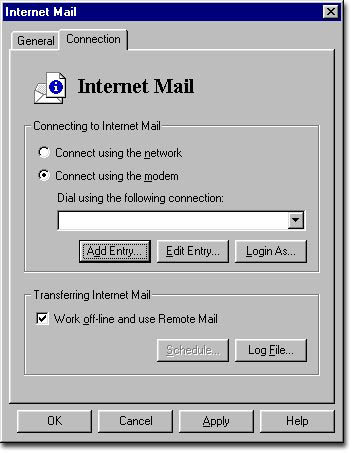
and enter this: smtp.easynet.co.uk Click on Ok to return to the previous screen. Now Click on the Connection Tab,
You have two options here. You should select Connect using the modem. You will then be given a list of the connections available. Select the appropriate connection. We recommend that you tick the box Work off-line and use Remote Mail. This will prevent Outlook from automatically trying to dial up every 10 mins. Now click on Login As.
Enter your username and password
in the appropriate boxes.
Click Apply, then click
on OK. Outlook will inform you that you have to exit the program
and restart it for the changes to take effect, so please do that. To check
your mail you need to click on Tools and Deliver Now. This will
send any mail that you have written and check for new mail.
|